

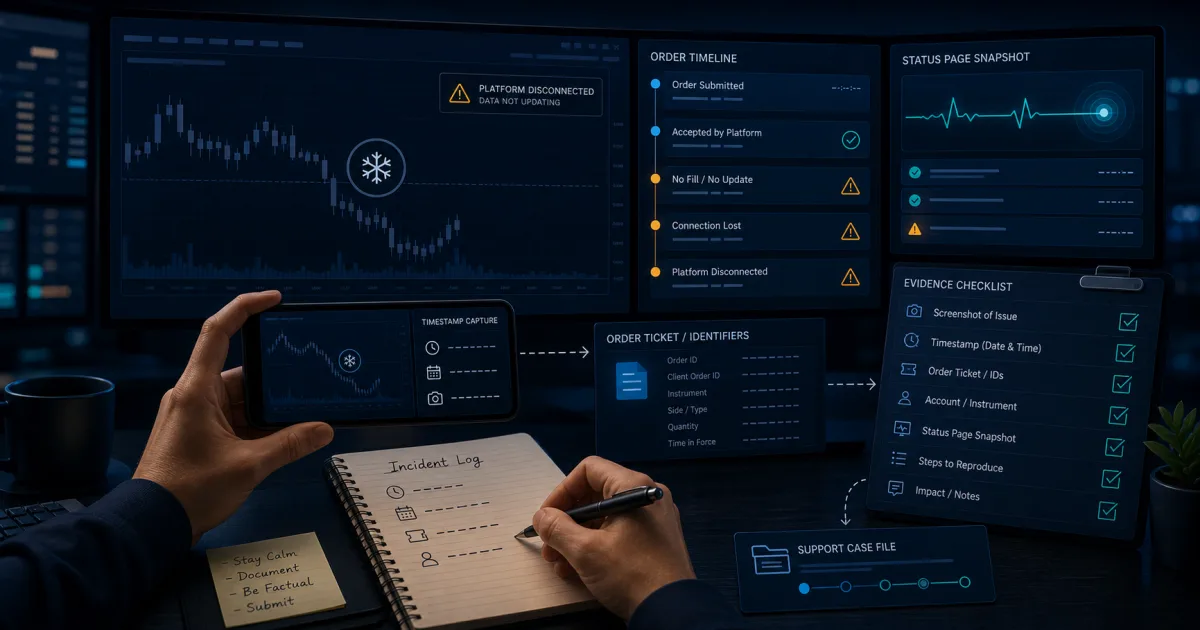
The practical answer: stop placing new trades, verify any open position and working order through the most authoritative channel you can still access, then capture timestamps, account number, order IDs, screenshots or video, the platform status page, and the exact steps that failed. Submit one factual support case while the evidence is fresh. Do not keep clicking, canceling, replacing, or opening trades to test whether the platform has recovered.
This sequence cannot guarantee an adjustment. It does give a firm or platform the specific record needed to investigate. Topstep's current troubleshooting guidance is unusually explicit: stop trading when an issue begins, preserve order IDs rather than trade IDs, capture HAR data while lag is occurring when requested, and include the affected account, date, time, description, and visual evidence. Other firms and platforms may ask for different files, so their current support instructions and account agreement still control.
The first five minutes
| Priority | Action | Evidence to preserve |
|---|---|---|
| 1 | Stop submitting new orders | Time you stopped, open-position state, and any working-order state you can still see |
| 2 | Confirm exposure | Account, contract, side, quantity, average price, and whether an order shows accepted, working, filled, rejected, or unknown |
| 3 | Capture the incident | Full-screen screenshot or recording with the system clock, platform, account, chart, orders, and error message visible |
| 4 | Check first-party status | Firm status page, platform status page, and exchange notice or market-state page where relevant |
| 5 | Save identifiers | Order IDs, account number, instrument, timestamps with timezone, and the exact action that produced the error |
| 6 | Open one support case | Concise chronology, impact, files, identifiers, and the remedy or investigation requested |
If you cannot confirm whether a position remains open, treat the exposure as unknown. Use an officially supported alternate access method only if the firm's instructions permit it and you already know how to use it. A rushed move to an unfamiliar mobile app, browser session, or second platform can create duplicate orders and a harder record to untangle.
Separate a shared outage from a local problem
A red status page can support a shared-incident timeline, but a green page does not prove your individual session was healthy. Status dashboards are usually service-wide summaries; they may not show a short regional, account-specific, broker-routing, data-entitlement, browser, or local-network issue.
Check the layers in order:
- Firm status page and official announcement channel.
- Trading platform or broker status page.
- Exchange notice or market state if the instrument itself appears paused.
- Your local connection, device load, VPN, firewall, browser, and number of active sessions.
- The account's own risk controls, trading hours, contract limit, billing state, and loss-limit status.
Topstep's troubleshooting page notes that rejected orders can also come from a maximum-loss event, trading outside permitted hours, excess size, inactive billing, a holiday closure, or a CME-controlled Velocity Logic event. That is why “the platform rejected me” is not yet a diagnosis.
At the August 6 verification check, Tradovate reported its live and demo access, execution, risk, data, evaluation creation, and named prop integrations as up. TradingView reported all systems operational but also posted scheduled Price Alerts maintenance for August 8 from 04:00 to 11:00 UTC. A planned alert interruption is not the same as an order-routing outage; save the component name and maintenance window instead of broadening the claim.
Capture a support-grade screenshot
A useful screenshot shows context, not just an error toast. Include as much of the following as the platform safely allows:
- system clock and timezone;
- account number or a clearly identifiable partial number;
- contract symbol and expiry;
- order panel with side, quantity, type, price, and status;
- positions and working orders;
- the full error message;
- chart timestamp and data state; and
- the relevant status page in a separate capture.
TradingView's current snapshot instructions allow orders, executions, and positions to appear in a saved chart image when that option is enabled. Its alert troubleshooting page also tells users to attach a screenshot showing the result of its alert-server connectivity check when the problem persists.
Avoid posting full account records publicly. Send evidence through the firm's official support channel, and redact unrelated balances, personal details, or credentials. Never include a password, API secret, recovery code, or full payment information.
Order IDs matter more than a narrative alone
Write down each affected order as a separate line:
| Field | Example format |
|---|---|
| Account | Last four digits or the firm's requested identifier |
| Instrument | MNQ SEP 2026 or the platform's exact symbol |
| Order ID | Exact platform order identifier |
| Local time | 2026-08-06 08:03:14 MDT |
| Exchange time | If displayed separately |
| Intended action | Submit, modify, cancel, flatten, or close |
| Platform result | Accepted, working, filled, rejected, disconnected, or unknown |
| Observed impact | Position remained open, duplicate appeared, fill differed, or data froze |
Topstep specifically distinguishes Order IDs from Trade IDs and asks traders to provide the affected Order IDs, account numbers, date and time, problem description, and screenshots or screen recording. If the order is older, its current instructions explain how to export the order record and locate the ID without sending the entire CSV.
Preserve technical evidence while the failure is happening
Some browser incidents require a HAR capture or other diagnostic file. Topstep says a HAR file must be captured while lag is occurring, not afterward, when applicable. Do not improvise this during a live position unless you already understand the process and can do it safely. Record the visible facts first; technical collection comes second.
Also note:
- platform and app version;
- browser and operating system;
- wired, Wi-Fi, or mobile connection;
- VPN, firewall, antivirus, or ad-blocker state;
- whether the issue reproduces in another officially supported client;
- CPU or memory pressure if visible; and
- whether other market-data sites or internet services remained reachable.
TradingView's current guidance for a crashing desktop tab recommends testing the same behavior in the browser before contacting support. Its alert guidance suggests checking the alert server and testing a different network when local filtering may be involved. These are diagnostic steps, not proof that the trader or platform caused the incident.
Use this incident log
Copy this structure into your support ticket or notes:
- Incident window: start and end time with timezone.
- Account and instrument: account identifier, contract, side, and quantity.
- Expected action: what you attempted to submit, change, cancel, or close.
- Observed result: exact message and order state.
- Exposure: open position and working orders before and after the incident.
- Identifiers: order IDs and any case or connection ID.
- Service checks: firm, platform, broker, and exchange status captures.
- Local checks: connection, device, browser/app, VPN, and alternate supported client.
- Attachments: screenshots, video, logs, or HAR file.
- Request: investigation, fill review, rule review, or account-status confirmation.
Keep the tone factual. “Order 123 was submitted at 08:03:14 MDT and remained unknown until 08:05:02” is more useful than “the platform stole the trade.” Separate what the screen showed from what you infer happened behind it.
What not to do
- Do not keep trading to test recovery.
- Do not repeatedly submit the same order without knowing whether the first request was accepted.
- Do not delete local logs, clear the app, or restart before capturing the visible state unless safety requires it.
- Do not rely on a community post as the sole incident record.
- Do not claim a fill adjustment, reset, or reimbursement is guaranteed.
- Do not send credentials or sensitive personal data in screenshots.
- Do not confuse a scheduled alert, data, or maintenance event with an execution outage.
Topstep warns that continuing to trade after an issue may prevent an exception request from being reviewed or approved in most cases. That is a Topstep policy, not a universal promise or rule, but “stop and document” remains the safer operational default across providers.
Build the evidence plan before the next session
Bookmark the official status and support pages for every platform and firm you use. Know where the platform displays order IDs. Set the operating-system clock to show seconds and confirm the timezone. Keep a short incident-log template nearby. Learn the supported alternate access path before you need it, and understand whether working orders remain at the broker or depend on the local client.
For a firm-level review and Topstep's current controlled offer path, see the Topstep review. For choosing platforms that support a familiar execution workflow, use the Tradovate prop-firm category. For current verified incidents and scheduled maintenance, monitor the News Hub.
Frequently asked questions
Should I keep trading during a platform issue?
The safer default is no. Stop submitting new orders, verify any current exposure, and document the incident. Topstep explicitly warns that continued trading after an issue may weaken an exception request.
Does a green status page prove the problem was local?
No. A status page is a useful service-wide record, but it may not capture a short, regional, account-specific, integration, or local-client failure. Preserve the green status result alongside your other evidence.
What is the most important evidence for a bad fill or rejected order?
The exact order ID, account, instrument, side, quantity, order type, timestamp with timezone, displayed status, and screenshots or recording showing the position and working orders.
Should I send my entire order-history CSV?
Follow the firm's current instructions. Topstep asks for the specific affected Order IDs and says not to send the entire CSV when locating an older order.
Does documenting an outage guarantee an account reset or reimbursement?
No. The firm, platform, broker, agreement, and incident facts determine the outcome. Documentation supports an investigation; it does not guarantee a remedy.
Is scheduled maintenance the same as an outage?
No. Record the affected component and published window. TradingView's August 8 maintenance notice, for example, names Price Alerts rather than its trading component.
First-party sources
All sources below were checked on August 6, 2026.
- Topstep General Platform Troubleshooting — stop-trading instruction, local checks, Order IDs, HAR timing, screenshots, support-case fields, and exception qualification.
- Topstep status page — official incident and component-status destination.
- Topstep homepage — current product/support navigation and direct status-page link.
- Tradovate status — current live/demo access, execution, risk, data, evaluation creation, and integration status.
- TradingView status — current operational state and scheduled August 8 Price Alerts maintenance window.
- TradingView alert troubleshooting — connectivity isolation, alternate-network check, and screenshot evidence.
- TradingView trade snapshots — including orders, executions, and positions in saved chart evidence.
- TradingView support guide — official ticket path and precise issue categorization.
- CME notices — official archive for electronic-trading, market-regulation, hours, and technology notices.
- CFTC press releases — checked for direct regulatory developments affecting this workflow; none displaced the guide on August 6.
Current Firm Offers and Direct Links
Open the firm in a new tab with the recorded ComparePropFirms commercial link. Use the displayed code when applicable, and confirm the final price and terms before paying.